GIF to PDF
Convert GIF images into a PDF — for a static GIF this keeps the single frame; an animated GIF is flattened to its first frame, since a PDF page can't hold motion.
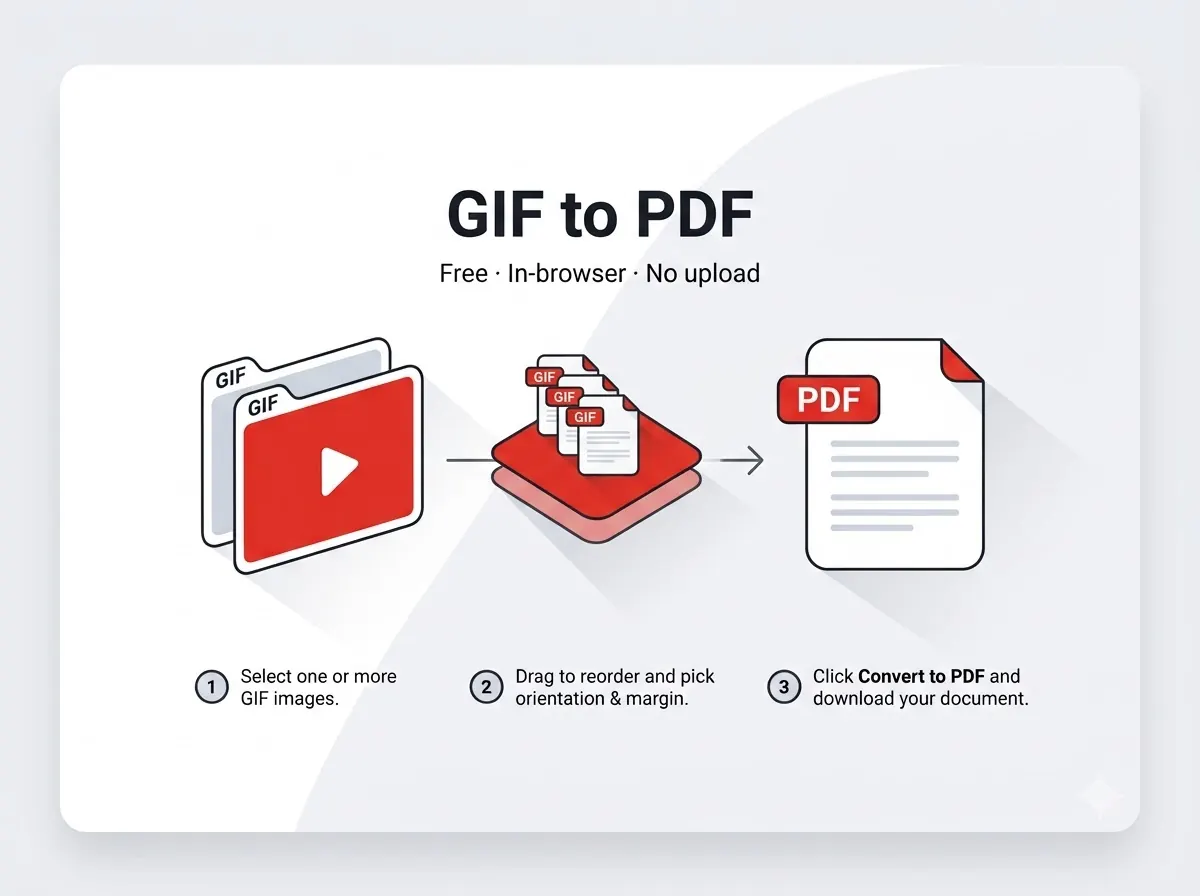



How it works
- Batch multiple GIFs into one ordered PDF.
- Animated GIFs export as their first frame only.
Private by design
The file never leaves your device — everything runs inside your browser tab using JavaScript PDF libraries, with nothing uploaded to any server. That also means there's no per-day limit on how many files you process, since nothing is metered on a server.
Good to know
The finished file downloads straight to your device's normal Downloads folder with a new file name, so the original stays untouched and you can tell the two apart at a glance.
Frequently asked questions
What happens to an animated GIF?
Only the first frame is used — PDF pages are static, so the animation can't be preserved.
Is there a sign-up or a watermark?
No — no account needed and the output file carries no watermark.
Does it work on mobile?
Yes, it runs in any modern mobile browser on Android or iPhone, not just on desktop.
Is my file kept or deleted after processing?
Neither — it's never uploaded in the first place, so there's nothing stored on any server to delete.
Reviewed by Manoj Pathak & Pallavi Yadav, Toolzo team — updated 23 September 2026.