Add Image to PDF
Place a picture, logo, stamp or signature image onto any page of a PDF at the exact spot and size you choose.
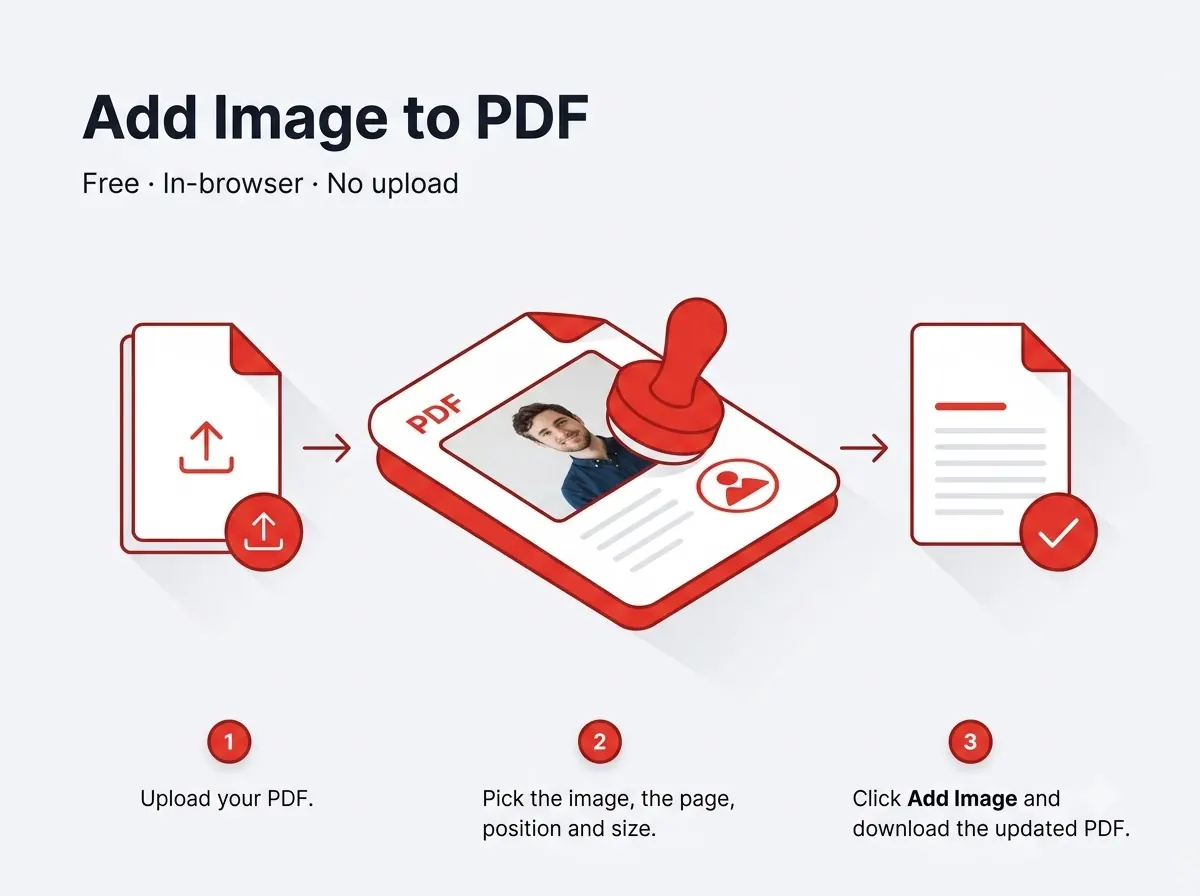



How it works
- Drag to position, resize with corner handles.
- Add to one page or repeat across several.
Private by design
The file never leaves your device — everything runs inside your browser tab using JavaScript PDF libraries, with nothing uploaded to any server. That also means there's no per-day limit on how many files you process, since nothing is metered on a server.
Good to know
There's no queue and no daily cap — since nothing runs on a shared server, you can process as many files back-to-back as the task needs in one sitting.
Frequently asked questions
Can I add a transparent PNG (like a stamp)?
Yes, transparent PNG backgrounds are preserved.
Is there a sign-up or a watermark?
No — no account needed and the output file carries no watermark.
Does it work on mobile?
Yes, it runs in any modern mobile browser on Android or iPhone, not just on desktop.
Is my file kept or deleted after processing?
Neither — it's never uploaded in the first place, so there's nothing stored on any server to delete.
Reviewed by Manoj Pathak & Pallavi Yadav, Toolzo team — updated 23 September 2026.