PDF to Image Converter

A free online PDF to JPG, PDF to PNG, and PDF to WebP converter. Turn PDF pages into images with full quality control, page selection, and batch support. Nothing leaves your device.

Your PDF never leaves this device. Pages are rendered in your own browser — nothing is uploaded and nothing is stored. Contracts, statements and ID documents stay where they are.

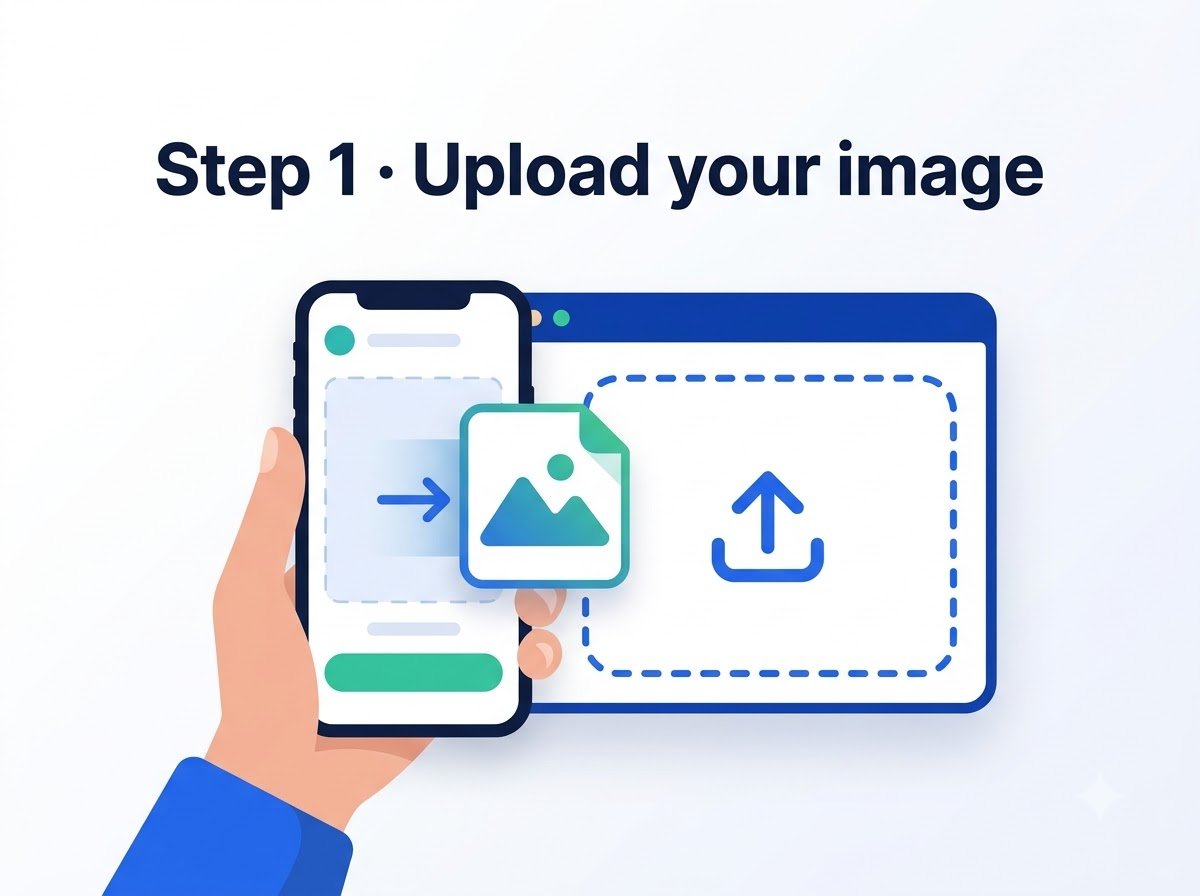
Drag & drop PDFs here, tap to browse, or paste from clipboard
Max 100 MB each · stays on your device · multiple files accepted

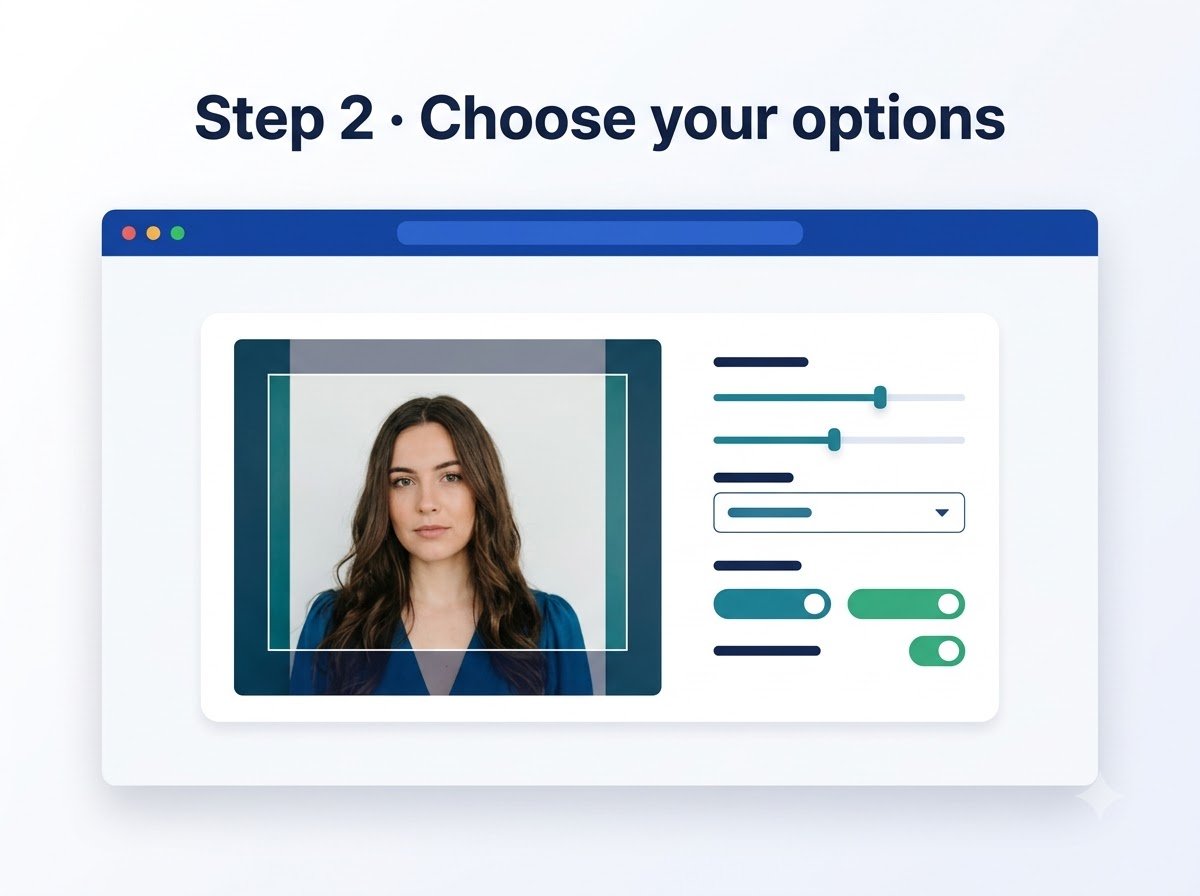
60% 100% 92%
Maintains aspect ratio

PDF to JPG converter, page by page

A PDF is a document format; an image is not. Portals that accept only JPG or PNG, WhatsApp forwards, Instagram posts, presentation slides — none of them take a PDF. Converting means rendering each page exactly as it looks and saving that rendering as a picture.

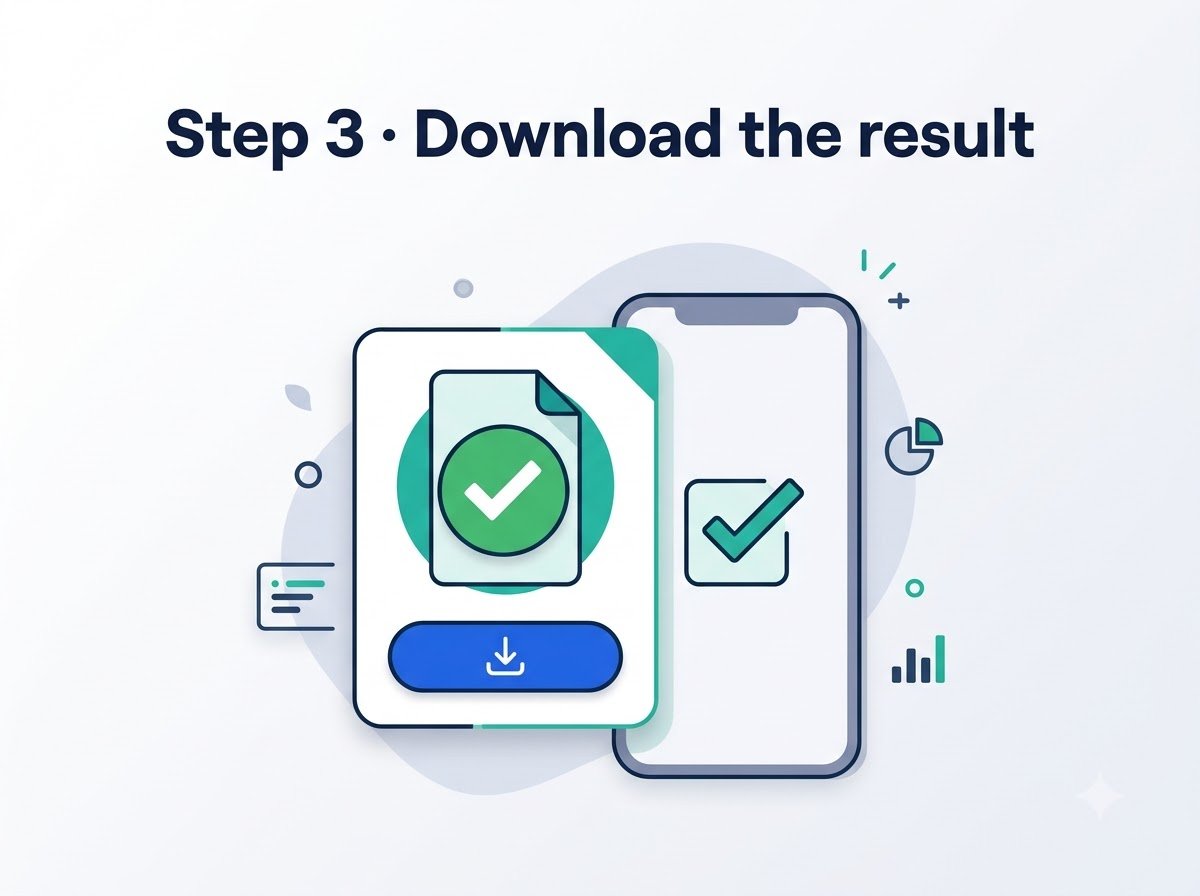
This converter does that in your browser. Every page becomes its own image, shown as a thumbnail with a Download button beneath it, so you can take the one page you actually need rather than unzipping a folder to find it. When there are several pages, a ZIP of the whole set is available too.

One thing to be clear about: rasterising a page turns its text into pixels. The result looks identical but the text is no longer selectable, searchable or editable. That is true of every PDF to image converter. If you need the words back, a PDF to Word or PDF to Text conversion is the right tool instead.

PDF to PNG converter, or PDF to JPG — which to choose

The format matters more than most people expect, and the right answer depends on what is on the page.

The trade-off is size. A text-heavy page saved as PNG can be several times larger than the same page as JPG. A practical rule: scans and photos → JPG; anything born digital with sharp edges → PNG; web use or tight size limits → WebP. If the image is going into a printed document or will be zoomed into, lean PNG regardless.

PDF to WebP — the modern alternative

WebP has become the default choice for many web publishers because it delivers 25-35% smaller files than JPG at the same visual quality, and dramatically smaller than PNG for photographs. The quality slider works exactly the same way as for JPG — lower values give smaller files, higher values give sharper output.

If you are converting images for a website, social media, or a document that will be viewed on screen, WebP is worth choosing. For print or archival where you need the original pixels, PNG remains the safer bet.

PDF to JPG high quality, and PDF to PNG high quality

Resolution is the other half of quality, and it is independent of format. Anyone searching for a PDF to image converter high quality enough for print is really asking about DPI, not about JPG versus PNG.

For PDF to JPG high quality or PDF to PNG high quality output, the resolution setting is the lever that matters — a PNG at low resolution still looks soft, and a JPG at 300 DPI can look better than a PNG at 72.

Standard renders at roughly 72 DPI equivalent, which is fine for viewing on a screen or sending over a messaging app. High, around 150 DPI, is the sensible default and what most uploads and documents want. Maximum, around 300 DPI, is print resolution — choose it when the image will be printed, projected, or zoomed into, and accept that files get considerably larger and conversion takes longer.

You can also choose Custom DPI and enter any value from 72 to 600. This is useful when you know exactly what resolution the destination portal requires.

How to reduce the size of converted images

If the images are too large for a form or email attachment, you have several levers:

For exact KB limits, the Compress Image to KB tool can take the output and shrink it to a precise target size.

Converting a scanned PDF vs a digital PDF

Scanned PDFs are essentially images wrapped in a PDF container. Converting them to JPG or PNG is a lossy-to-lossy or lossless-to-lossy round-trip — quality may degrade slightly with each conversion, especially with JPEG. Use high DPI and quality settings for scanned documents, and consider PNG if you need to preserve every detail of the scan.

Digital PDFs (generated from Word, LaTeX, or other software) contain vector text and graphics. Converting them to images produces crisp output at any resolution — the text is rendered from the font outlines, so it stays sharp. This is where PNG really shines for text-heavy pages, preserving the sharp edges that JPEG would blur.

PDF to JPEG offline, and on a phone

Once this page has loaded, it keeps working with the internet switched off. That makes it a genuine PDF to JPG offline converter rather than a website that merely says so: rendering happens through code already sitting in your browser, so there is nothing left to fetch. Try it — load the page, turn off wifi, and convert.

The same holds on a phone. As an online PDF to JPEG converter it needs no install, so to convert PDF to JPG in mobile you do not need an app: open this page in Chrome or Safari, tap the box, pick the PDF from your files, and the images save to your downloads like any other. Large documents at maximum DPI are heavy work for a phone, so convert a page range at a time if it stalls.

How to convert PDF to JPEG is the same question: whether you write it JPG or JPEG makes no difference — they are the same format, and the PDF to JPEG conversion here is exactly the PDF to JPG one. The three-letter spelling is simply a leftover from old filename limits.

PDF to JPG 600 DPI, and PDF to image high quality

The resolution dropdown offers 72, 150 and 300 DPI, and choosing Custom DPI lets you type any figure up to 600 — beyond what most conversions need and exactly right for a few. At 600 DPI an A4 page becomes roughly 5000 × 7000 pixels, so the file is large and conversion is slow, but nothing is thrown away.

Use it when the image will be printed at full size, when small print has to stay legible after enlargement, or when an archive or submission specifies it. For a scan you only intend to view or email, 150 DPI is the sensible default and 300 DPI covers most printing. Going higher than the original scan resolution adds pixels but no real detail — a 200 DPI scan rendered at 600 DPI is still a 200 DPI scan.

Convert PDF to JPG without losing quality

Some loss is inherent: JPEG discards detail to save space, and there is no setting that avoids it entirely. What decides how much you lose is the resolution first and the quality level second. A page rendered at 72 DPI and saved at maximum quality still looks soft, because the detail was never captured — no quality slider can put it back.

So for the sharpest result, raise the DPI before touching quality. If you need genuinely lossless output, choose PNG instead: the files are several times larger, but every pixel survives. That is the right choice for pages of text, tables and line drawings, where JPEG's compression leaves a faint grey haze around hard edges.

Converting only the pages you need

The page range box accepts individual pages and spans together — 1-3, 7, 10-12 converts pages one through three, page seven, and pages ten through twelve. Leaving it empty converts the whole document.

You can also use the page preview section (appears after loading a PDF) to select pages visually with checkboxes. The range box and preview selection stay in sync — changing one updates the other.

This is the common case in practice. You have a forty-page bank statement and need page four for a form; a twelve-page brochure and want the back cover; a scanned booklet where only the certificate matters. Converting a range rather than the whole file is faster, uses less memory, and saves you hunting through a ZIP afterwards.

An alternative to the upload-based converters

If you arrived here after using one of the big online converters, the difference worth knowing is where the work happens. Tools like iLovePDF, Smallpdf and Adobe's online Acrobat send your document to their servers; this one does not. We wrote up that comparison in more detail in iLovePDF PDF to JPG alternatives, including what each service does with the file afterwards.

The practical differences beyond privacy: there is no daily conversion cap here, no queue at busy times, no watermark, and no account. Because rendering is local, speed depends on your device rather than someone else's server load — which usually means faster on a laptop and slower on an old phone.

Nothing is uploaded

Most online PDF converters work by sending your file to their servers, converting it there, and deleting it after some window — an hour, a day. It is a reasonable way to build a service, and for a restaurant menu it does not matter.

It matters for PDFs specifically, because of what people keep in them: signed contracts, salary slips, bank statements, Aadhaar and PAN scans, medical reports, exam certificates. Uploading those to a converter means handing a company you have never heard of a copy of documents you would not email to a stranger.

This tool renders pages locally through pdf.js. The file is read into memory on your device, drawn to a canvas, and turned into images there. You can check this for yourself — load the page, disconnect from the internet, and convert anyway. It works, because there was never anything to send.

Frequently Asked Questions

How do I convert a PDF to an image for free?

Drop the PDF into the box, choose JPG, PNG or WebP, pick a resolution and quality, and press Convert. Each page is rendered as a separate image which you can download individually or all together as a ZIP. There is no sign-up, no watermark and no page limit beyond what your device can handle.

Should I convert PDF to JPG or PNG?

Use JPG for scanned documents, photographs and anything you need to keep small, since JPEG compresses heavily. Use PNG for pages that are mostly text, line art, charts or logos, because PNG is lossless and keeps edges crisp instead of blurring them. A text-heavy page as PNG will be several times larger than the same page as JPG, but noticeably sharper when zoomed.

How to convert PDF to PNG free?

Select PNG in the output format box, drop your file in, and press Convert. It is free with no cap, no watermark and no sign-up, because the conversion runs on your own device rather than on a server someone has to pay for.

How to convert PDF to JPG free online?

Leave the format on JPG, which is the default, and convert. As an online PDF to JPG converter it needs no installation, and once the page has loaded it keeps working even if you go offline.

Can I convert only certain pages of a PDF?

Yes. Type a page range such as 1-3, 7, 10-12 in the page range box, or use the page preview checkboxes to pick pages interactively. Leave it empty to convert the whole document.

How do I convert PDF to high quality images?

Choose the High or Maximum resolution option, which render at roughly 150 and 300 DPI equivalent. You can also set a custom DPI up to 600. For JPEG and WebP, the quality slider (60-100%) gives additional control over file size vs sharpness.

Can I download each page separately?

Yes. Every converted page appears with a thumbnail and its own Download button, so you can take just the page you need. A Download all as ZIP button is also provided when there is more than one page. Single-page PDFs download directly as an image rather than being zipped.

How do I convert PDF to JPEG online for free?

It is the same operation as PDF to JPG — JPEG and JPG are one format with two spellings. Drop the file in, leave the format on JPG, and press Convert. There is no charge, no watermark, no account and no daily cap, because the work happens in your browser rather than on a server someone has to pay for.

Can I convert PDF to JPG offline?

Yes. Once the page has loaded, the conversion code is in your browser and needs no further connection. Load the page, disconnect, and convert — it still works. This is also why nothing is ever uploaded: there is no server involved at any point.

How do I convert a PDF to JPG on a mobile?

Open this page in your phone's browser, tap the upload box, and choose the PDF from your files or cloud storage. The converted images download like any other file. No app to install. On an older phone, convert a page range at a time rather than a long document at maximum DPI.

Can I convert PDF to JPG at 600 DPI?

Yes. Choose Custom DPI in the resolution dropdown and type 600, which is the maximum. It suits full-size printing or archival submissions where small print must stay legible when enlarged. Expect large files and slow conversion. Note that rendering above the original scan resolution adds pixels but no extra detail.

Does it work with password-protected PDFs?

Not directly. An encrypted PDF cannot be rendered without its password, and the tool will tell you that is what happened rather than failing silently. Remove the password first with the Unlock PDF tool, then convert the unlocked file.

Are my PDF files uploaded to a server?

No. Conversion runs entirely in your browser using pdf.js, so the file never leaves your device and nothing is stored anywhere. This matters because PDFs are often contracts, bank statements, ID documents and certificates. Most online converters upload your file to their servers and delete it after some period; this one has nothing to delete.

Why is the text no longer selectable after converting?

Converting to an image rasterises the page, so text becomes pixels rather than characters. That is inherent to any PDF to image conversion, not a limitation of this tool. If you need editable or selectable text, use a PDF to Word or PDF to Text tool instead.

What is WebP and should I use it?

WebP is a modern image format developed by Google that offers superior compression compared to JPG and PNG. For similar visual quality, WebP files are typically 25-35% smaller than JPG and significantly smaller than PNG. All modern browsers support WebP. Use it when file size matters and you need good quality, especially for web use.

Can I convert multiple PDFs at once?

Yes. Drop several PDF files at once — each document becomes a separate folder in the ZIP download, with its pages named appropriately. This is useful for batch processing scanned documents or reports.

How do I reduce the size of the converted images?

Use the Quality slider (lower = smaller), choose JPG over PNG, select a lower DPI, or enable the Resize option to set a maximum width/height. For Web format, WebP gives the best compression at the same quality level.

How it works

Pages are parsed and rendered by Mozilla's pdf.js library onto an HTML canvas at a scale factor derived from your resolution choice, then exported with canvas.toBlob as either image/jpeg, image/png, or image/webp. The JPEG and WebP quality slider controls the compression level (60-100%). The canvas is filled white before rendering, because PDF pages have no inherent background and JPEG has no transparency — without this step a transparent page would export with a black background. Multi-page output is packaged with JSZip. Everything executes locally; no file data is transmitted.

Resize logic: When enabled, images are downscaled to fit within the specified maximum width and height while preserving aspect ratio. This uses canvas drawing with bicubic interpolation.

Rotate logic: Each page can be rotated independently using the buttons beneath its thumbnail. The rotation is applied during export — the underlying PDF page is rendered with a rotation transform.

Rendering by pdf.js (Mozilla). Archiving by JSZip. Both run client-side in your browser.

Home / PDF Tools / PDF to Image Converter
Ad space